


What Is CloudLinux and Why Do Hosting Providers Deploy It?
In short: CloudLinux LVE limits are the per-account caps on CPU, RAM (PMEM), entry processes, I/O and inodes on a shared server. They stop one busy site from slowing down every other site on the same server, and hitting them causes 503 or 508 errors.
On legacy shared hosting servers, a single misconfigured website running an unindexed database query or experiencing a sudden viral spike could consume 100% of the server CPU and memory. This degraded or crashed all neighboring websites sharing the hardware, a vulnerability known across the hosting industry as the "noisy neighbor problem." CloudLinux fundamentally resolves this structural flaw by integrating the Lightweight Virtual Environment (LVE) kernel module, which isolates each cPanel account into its own secure, resource-bounded container.
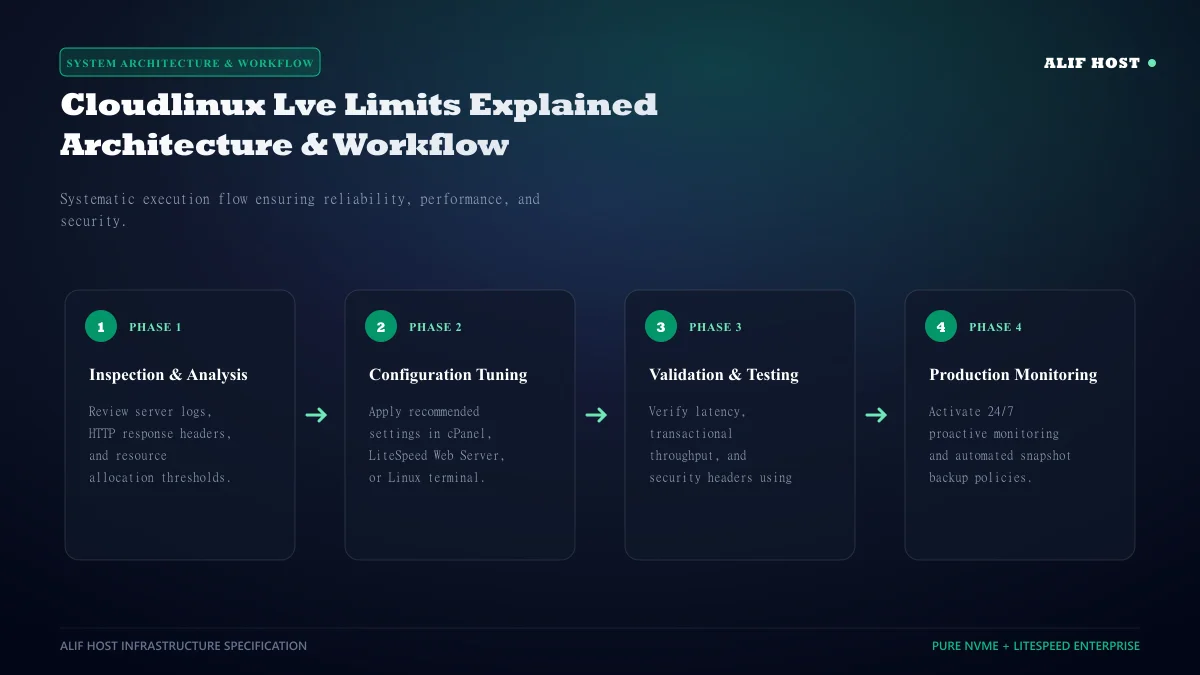
- CageFS Virtualization: Each user navigates an isolated virtual filesystem containing only their files and safe system binaries, completely hiding server configuration and neighboring user directories.
- Kernel-Level Isolation: Resource governance occurs at the Linux kernel scheduler layer, preventing processes from exceeding allocated quotas.
- Independent Resource Limits: An account consuming 100% of its allocation throttles itself without impacting other hosted accounts.
- Secure Symlinks Protection: Prevents hackers from utilizing malicious symbolic links to traverse directories and read foreign database passwords.
Breaking Down the 5 Core Resource Allocation Metrics in cPanel
When reviewing your cPanel dashboard Resource Usage sidebar, you will see five fundamental constraints that dictate execution capacity.
1. CPU Usage (% of Allocated Core)
CPU allocation represents the percentage of server processor cores your scripts can utilize. If your plan grants 100% of a CPU core, your PHP and database processes can fully saturate one physical CPU core during peak traffic. If processes demand more, CloudLinux throttles execution time, slowing script completion rather than crashing the account.
2. Physical Memory (PMEM)
PMEM represents the exact quantity of real server RAM your account processes can hold simultaneously. When your scripts exceed PMEM limits (for example, generating large PDF invoices or processing uncompressed images in WordPress), the server triggers an Out of Memory (OOM) error, resulting in a temporary HTTP 500 or 503 error.
3. Entry Processes (EP)
Entry Processes represent the number of simultaneous active PHP, CGI, or web requests processing at any single instant. A standard website serving 10,000 visitors daily rarely exceeds 5 to 10 concurrent entry processes because well-optimized dynamic requests finish in under 150 milliseconds. Once an entry process finishes execution, the slot immediately frees up for the next visitor.
4. Number of Processes (nPROC)
nPROC sets the absolute limit on all concurrent background tasks, cron jobs, and mail delivery threads running inside your LVE account.
5. Disk Inodes (Total File and Directory Count)
An inode represents a distinct file system object: every file, folder, image thumbnail, cached file, and stored email accounts for one inode.
Comparison: CloudLinux Resource Allocations by Hosting Tier
Review the technical allocation parameters across Alif Host shared hosting plans.
| Resource Parameter | Starter Plan | Premium Plan | Business Plan |
|---|---|---|---|
| CPU Allocation | 100% (1 vCPU Core) | 150% (1.5 vCPU Cores) | 200% (2 vCPU Cores) |
| Physical Memory (PMEM) | 1 GB High-Speed RAM | 1.5 GB High-Speed RAM | 2 GB High-Speed RAM |
| Concurrent Entry Processes (EP) | 20 Concurrent Connections | 30 Concurrent Connections | 40 Concurrent Connections |
| Total Process Limit (nPROC) | 50 Background Daemons | 75 Background Daemons | 100 Background Daemons |
| Disk IO Throughput | 10 MB/s NVMe Burst | 20 MB/s NVMe Burst | 30 MB/s NVMe Burst |
| Inode Storage Quota | 250,000 Files | 400,000 Files | 600,000 Files |
Understanding and Diagnosing HTTP 508: Resource Limit Reached
When your cPanel account triggers an HTTP 508 error, CloudLinux has intervened to protect server stability because your site exceeded its allotted entry processes or memory ceiling.
- Inspect cPanel CPU and Concurrent Connection Usage: Navigate to Metrics -> Resource Usage -> Details to view real-time graphical usage charts.
- Identify Memory Leaks: Look for sudden PMEM spikes that indicate unoptimized plugins or runaway database queries.
- Audit External Webhooks: Ensure third-party payment gateways or inventory synchronizers are not spamming your server with hundreds of simultaneous unthrottled POST requests.
- Verify Inode Consumption: Check Disk Space Usage to delete obsolete staging clones, backup zip files, or junk email folders.
How to Prevent Resource Limit Breaches without Upgrading Prematurely
Before spending additional budget on larger hosting tiers, apply these technical optimizations to reduce your site’s resource footprint by up to 70%:
- Deploy Server-Level LiteSpeed Caching: Serving cached static HTML bypasses PHP execution entirely, dropping your entry process count to zero for cached page views.
- Schedule Cron Jobs During Off-Peak Hours: Never execute heavy automated database backups or product feed imports during midday peak visitor hours.
- Optimize Image Uploads Automatically: Configure WordPress to convert images to WebP on upload, preventing memory exhaustion in the PHP GD or Imagick library.
- Purge Expired Transients: Delete orphaned cache options from your WordPress
wp_optionstable to accelerate MySQL database execution.
Optimization Playbook: How to Stay Within Shared Hosting Resource Ceilings
Keep your shared hosting account running smoothly without hitting CloudLinux resource limits or triggering HTTP 508 errors:
- Deploy Full-Page Caching: Caching pages reduces PHP execution by over 85%, freeing up entry processes and CPU cores.
- Offload Heavy Media: Host high-resolution videos on external platforms like YouTube or Vimeo rather than your local hosting storage.
- Defragment MySQL Tables: Run monthly table optimization in phpMyAdmin to reclaim disk space and speed up database queries.
- Disable Native WP-Cron: Set up a real cPanel Linux cron job to prevent concurrent visitor requests from spawning heavy background tasks.