


Understanding the 403 Forbidden Error: What Does It Actually Mean?
A 403 Forbidden error stops visitors and administrators in their tracks: 403 Forbidden: Access to this resource on the server is denied!
Unlike a 404 error, a 403 status confirms the requested file exists on disk. However, the server explicitly refuses to serve it due to authorization rules.
Common triggers include:
- Strict or corrupted
.htaccessrewrite rules. - Incorrect Linux file permissions (e.g. not 755 for folders or 644 for files).
- Web Application Firewall (ModSecurity) false positives.
- Security plugin blocks or missing directory index files.
This diagnostic guide walks you through the five most common fixes with clear step-by-step instructions.
These steps apply to any cPanel host, including Alif Host WordPress hosting.
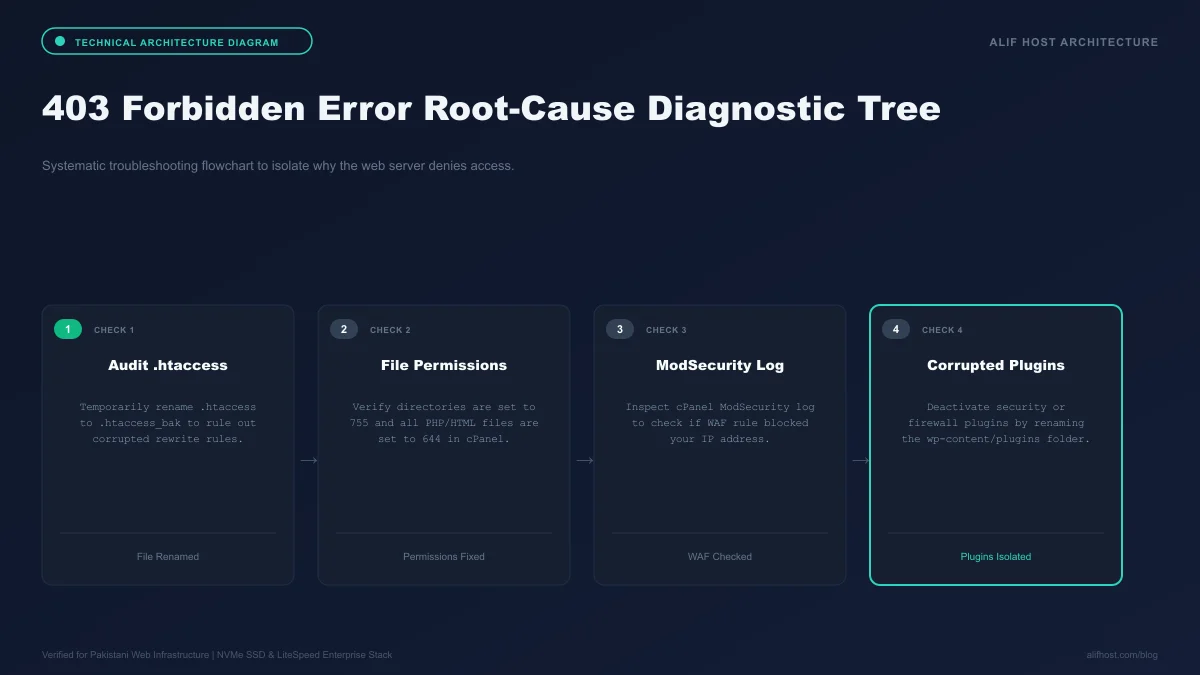
- Not a Hosting Crash: Your server and databases are online; an access-control rule is intentionally blocking the HTTP request.
- Top Culprit: Over 60% of 403 errors in WordPress are caused by corrupted
.htaccessdirectives or bad rewrite rules injected by security plugins. - Permission Mismatches: Incorrect Linux file modes (such as folders set to 777 or files set to 700) trigger Apache
mod_authz_coreaccess denials. - WAF False Positives: ModSecurity firewalls can misinterpret legitimate form submissions as malicious SQL injection or cross-site scripting (XSS).
.htaccess, file permissions, and ModSecurity rules resolves it quickly.Fix #1: Regenerate Corrupted or Misconfigured.htaccess Files
By far the most prevalent trigger for 403 Forbidden errors in cPanel shared hosting is a corrupted, bloated, or misconfigured .htaccess file. Security plugins (such as Wordfence, iThemes/Solid Security, or All-in-One WP Security) frequently inject aggressive firewall directives, IP blocklists, and file execution restrictions into .htaccess. If a directive contains a syntax error or blocks valid rewrite pathways, Apache responds with an immediate 403 Forbidden.
To diagnose and restore your .htaccess file:
- Log into your cPanel dashboard and open File Manager.
- In the top right corner, click Settings and check Show Hidden Files (dotfiles), then click Save.
- Navigate to your website's root directory (
public_html). - Locate
.htaccess, right-click it, and rename it to.htaccess_backup. - Refresh your website in an Incognito browser tab.
If your website immediately loads, you have confirmed that .htaccess was the root cause! Now, create a fresh, clean .htaccess file in public_html with the official standard WordPress rewrite rules:
# BEGIN WordPress
<IfModule mod_rewrite.c>
RewriteEngine On
RewriteRule.*, [E=HTTP_AUTHORIZATION:%{HTTP:Authorization}]
RewriteBase /
RewriteRule ^index\.php$, [L]
RewriteCond %{REQUEST_FILENAME} !-f
RewriteCond %{REQUEST_FILENAME} !-d
RewriteRule. /index.php [L]
</IfModule>
# END WordPressFix #2: Reset Linux File and Directory Permissions (755 & 644 Rules)
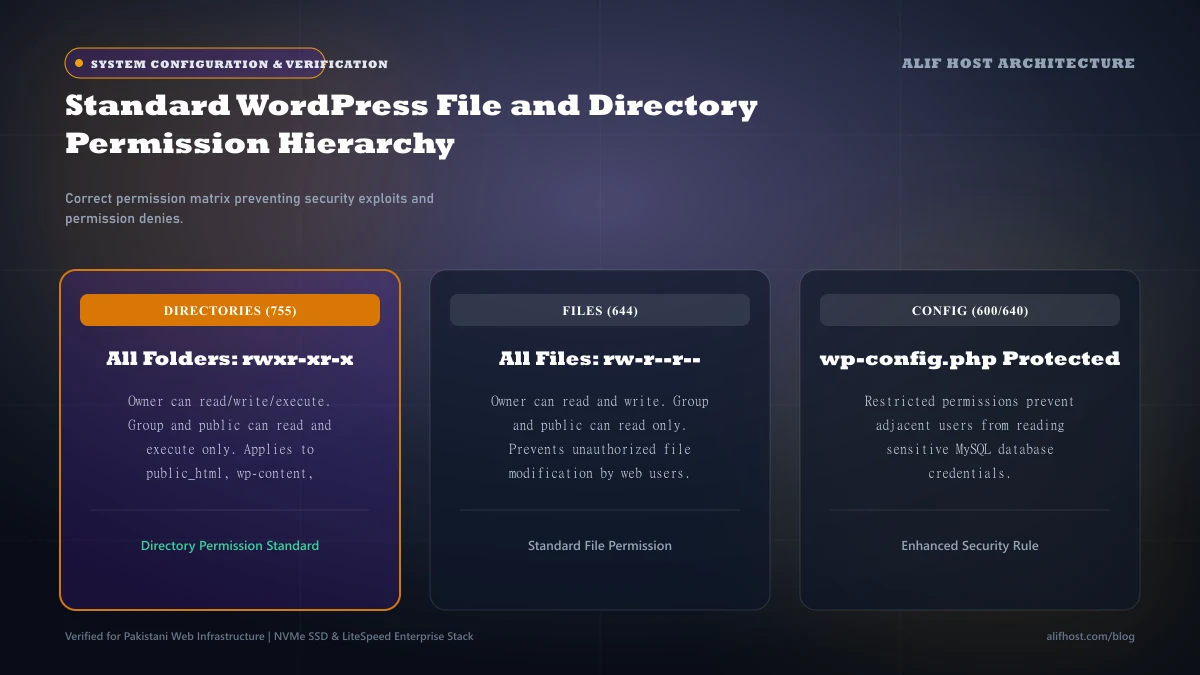
On modern Linux web servers running cPanel with suPHP, FastCGI, or LiteSpeed LSAPI, strict permission standards are enforced to prevent cross-account contamination. If file permissions are misconfigured (often caused by unzipping third-party themes, transferring files via insecure FTP, or following dangerous online tutorials advising "chmod 777") the web server will strictly refuse to serve the files, throwing a 403 error:
- All Folders / Directories must be set to
755(drwxr-xr-x): Allows the owner to read, write, and execute, while the world and group can read and enter the folder. - All Files must be set to
644(-rw-r--r--): Allows the owner to read and write, while the world and group can only read. wp-config.phpshould be set to600or640: Restricts direct database credential read access exclusively to the account owner.
If you have SSH terminal access to your hosting account, you can recursively audit and correct permissions across your entire website in 5 seconds with these two authoritative commands:
# Navigate to web root
cd ~/public_html

# Reset all directories to 755
find. -type d -exec chmod 755 {} \;

# Reset all files to 644
find. -type f -exec chmod 644 {} \;

# Secure wp-config.php
chmod 600 wp-config.php
If using cPanel File Manager without SSH, inspect the Permissions column. If folders display numbers other than 0755 or files display permissions like 0777 or 0600, right-click the item, select Change Permissions, and adjust accordingly.
Fix #3: Troubleshoot ModSecurity WAF False Positives
ModSecurity is an open-source Web Application Firewall (WAF) integrated into Apache and LiteSpeed web servers. It continuously inspects incoming HTTP POST and GET requests against standard OWASP Core Rule Sets (CRS) to block known attack patterns (such as SQL Injection, Remote File Inclusion, and Cross-Site Scripting).
Occasionally, legitimate WordPress operations (such as updating an Elementor layout containing custom CSS, saving raw HTML in a blog post, or submitting an e-commerce checkout form) can trigger a generic ModSecurity rule pattern, causing the firewall to instantly drop the connection with a 403 Forbidden error.
To diagnose ModSecurity false positives in cPanel:
- In cPanel, navigate to the Security section and click on ModSecurity.
- Locate your domain name and temporarily toggle ModSecurity to Off.
- Test the exact action that previously triggered the 403 error.
If the action completes successfully with ModSecurity disabled, you have identified a firewall false positive! Rather than leaving ModSecurity permanently disabled (which strips away your web application firewall protection), submit a support ticket to Alif Host Support with the exact timestamp and URL. Our systems engineers will inspect the server's ModSecurity audit log (/var/log/apache2/modsec_audit.log), identify the specific triggered Rule ID (e.g., Rule 941100), and whitelist that specific rule for your domain while keeping comprehensive security intact.
Fix #4: Deactivate Conflicting WordPress Plugins
Security and optimization plugins frequently create internal access-control restrictions that lock users out of specific pathways:
- Wordfence or iThemes Security: May lock out your IP address if it detects multiple failed login attempts or flags rapid administrative navigation as a brute-force attack.
- Two-Factor Authentication (2FA) Plugins: Misconfigured 2FA modules can block access to
/wp-adminwith a 403 response if session synchronization fails. - Caching & Firewall Plugins: Conflicting header rules can prevent dynamic scripts from loading.
To determine if a plugin is causing the 403 Forbidden error when you cannot log into /wp-admin:
- In cPanel File Manager, navigate to
public_html/wp-content. - Locate the
pluginsfolder. - Rename the folder to
plugins_disabled.
This action instantly deactivates all WordPress plugins safely at the database layer without deleting any data or plugin configurations. If you can now access /wp-admin, rename the folder back to plugins, enter your WordPress dashboard, and activate plugins one by one until the 403 error recurs, isolating the exact offending plugin.
Fix #5: Verify Missing Directory Index Files in public_html
Another overlooked cause of 403 Forbidden errors occurs when a visitor requests a directory that does not contain a default index file, and Directory Browsing is disabled on the server (which is standard security best practice to prevent visitors from snooping through your file structure).
If your website's root directory (public_html) is missing an index.php or index.html file (such as after an accidental deletion or incomplete site migration) Apache attempts to generate a directory index. Because directory listing is prohibited (Options -Indexes), the server returns 403 Forbidden.
Ensure that public_html contains a valid index.php file with the standard WordPress bootstrap header:
<?php
define( 'WP_USE_THEMES', true );
require __DIR__. '/wp-blog-header.php';
If this file is missing, re-upload it from a clean WordPress release download or restore it from your automated cPanel backups.