


The Reality of Deploying Modern Laravel Applications on Web Hosting
In short: To deploy Laravel on cPanel, upload the project outside public_html, point the domain to Laravel's public folder, set up .env and the database, run Composer and migrations, and add the scheduler as a cron job. A VPS follows the same steps with Nginx.
Laravel is the world's most popular PHP framework. It powers modern web applications, SaaS platforms, and APIs across Pakistan's tech industry.
However, moving a Laravel app from local development to production hosting often creates hurdles for developers.
Unlike legacy PHP scripts, Laravel strictly separates application logic from public assets. The web entry point resides exclusively in /public, while private configuration, database credentials, and storage remain in the parent directory.
Deploying incorrectly can expose your .env file or cause broken asset routing.
This complete 2026 guide shows how to deploy Laravel securely on both cPanel shared hosting and Ubuntu VPS servers.

- Security First: The
.envfile containing your database passwords,APP_KEY, and mail credentials must never be accessible via HTTP. - Document Root Alignment: Only the contents of Laravel's
public/directory should be exposed to public web traffic. - Composer in Production: Always install dependencies with
--no-dev --optimize-autoloaderto ensure maximum performance and minimum disk footprint. - Production Caching: Run
artisan config:cache,route:cache, andview:cacheto eliminate runtime parsing overhead.
The #1 Security Mistake: Exposing the.env File on cPanel
In our technical audits of hundreds of Pakistani web applications, by far the most dangerous security flaw discovered is developers dragging and dropping their entire Laravel root directory directly into public_html and using .htaccess hacks to redirect traffic to /public.
Why is this a catastrophic mistake? If Apache's rewrite module encounters a syntax error or .htaccess parsing is bypassed, any automated vulnerability scanner can request https://yourdomain.com/.env directly. When this happens, the web server serves the .env file as plain text, handing hackers your:
- MySQL database hostname, username, and password.
- Mail server credentials (SMTP username and password).
- Third-party API secret keys (Stripe, JazzCash, AWS S3, Twilio).
APP_KEY(allowing attackers to forge session cookies and execute remote code).
To prevent this, the authoritative production standard for cPanel shared hosting is to place the entire Laravel project folder one level above public_html in your user home directory.
The Architecturally Correct Directory Topology for cPanel Shared Hosting
Here is the exact directory architecture you should establish in cPanel File Manager or via SSH terminal:
/home/username/
├── laravel_app/ <-- [PRIVATE: Out of web reach]
│ ├── app/
│ ├── bootstrap/
│ ├── config/
│ ├── database/
│ ├── routes/
│ ├── storage/
│ ├── vendor/
│ ├──.env <-- 100% PROTECTED
│ ├── artisan
│ └── composer.json
└── public_html/ <-- [PUBLIC: Accessible via Web]
 ├── index.php <-- Points back to../laravel_app/
 ├──.htaccess
 ├── robots.txt
 ├── favicon.ico
 ├── build/ <-- Compiled Vite / React / Vue assets
 └── storage/ <-- Symbolic link to../laravel_app/storage/app/public
By keeping laravel_app outside public_html, it is physically impossible for any web visitor to download your .env file, browse internal controller code, or view error logs.
Configuring public_html/index.php
Copy the contents of your Laravel project's public/ folder directly into public_html. Then, open public_html/index.php and edit lines referencing the autoloader and bootstrap file to point one directory up (../laravel_app):
// Change this:
require __DIR__.'/../vendor/autoload.php';
$app = require_once __DIR__.'/../bootstrap/app.php';

// To this:
require __DIR__.'/../laravel_app/vendor/autoload.php';
$app = require_once __DIR__.'/../laravel_app/bootstrap/app.php';
Step-by-Step cPanel Deployment Workflow via Terminal / SSH
On Alif Host, all developer hosting plans provide SSH terminal access. Here is the exact CLI sequence to deploy your Laravel application cleanly:
1. Clone Your Repository into user root
Log into your account via SSH and clone your private repository:
cd ~
git clone https://github.com/yourbrand/your-laravel-repo.git laravel_app
cd laravel_app
2. Configure Production Environment & Dependencies
Copy the environment file, input your cPanel MySQL database credentials, and install production dependencies without dev tools:
cp.env.example.env
nano.env
# Set APP_ENV=production, APP_DEBUG=false, and input DB credentials

composer install --no-dev --optimize-autoloader
php artisan key:generate
php artisan migrate --force
3. Set Up Public Directory & Storage Symlink
Copy public assets and generate the symbolic storage link:
# Copy public assets into public_html
cp -r ~/laravel_app/public/* ~/public_html/
cp ~/laravel_app/public/.htaccess ~/public_html/

# Fix paths in public_html/index.php as shown above
# Generate the storage symlink
ln -s ~/laravel_app/storage/app/public ~/public_html/storage
4. Execute Production Caching Directives
Compile and cache configuration, routes, and views for instantaneous execution:
php artisan config:cache
php artisan route:cache
php artisan view:cache
php artisan event:cache
Automating Laravel Tasks: Setting Up cPanel Cron for the Scheduler
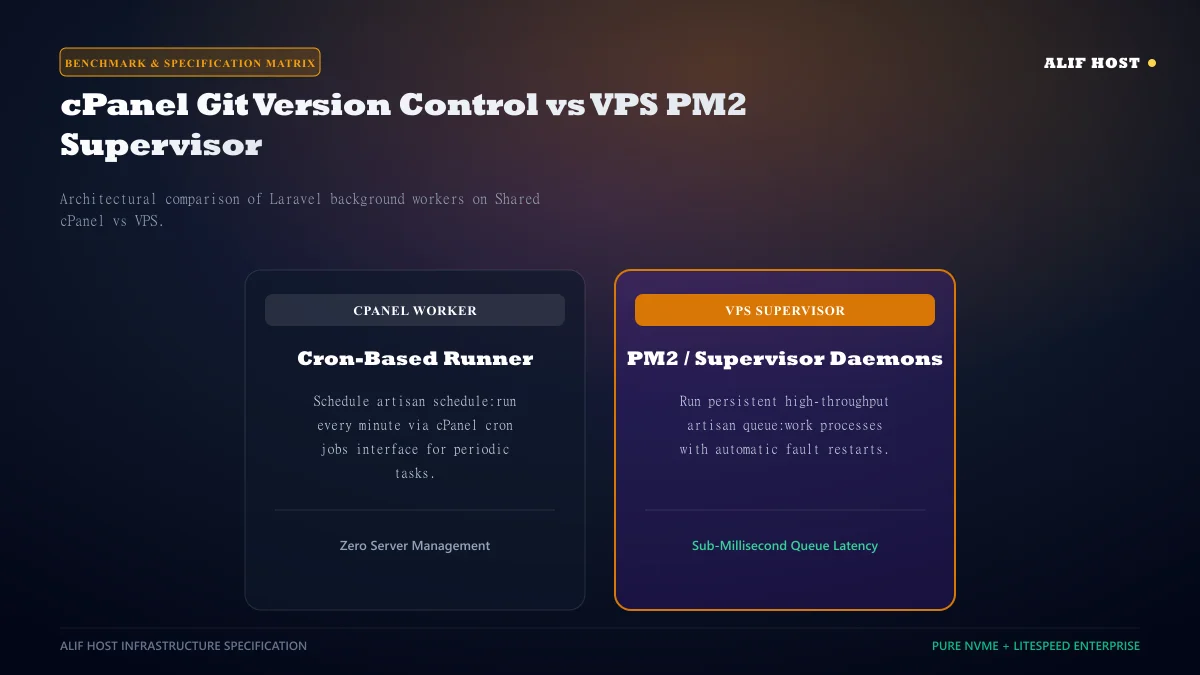
Laravel includes an integrated task scheduler that allows you to schedule background jobs (such as automated emails, invoice generation, subscription renewals, and database pruning) using a single cron job entry.
Instead of configuring separate cron entries for every command in cPanel, you only need to register the master Laravel scheduler cron entry:
- In cPanel, navigate to the Cron Jobs tool under the Advanced section.
- Under Common Settings, select *Once Per Minute (` `)**.
- In the Command field, input the exact path to your PHP binary and the Laravel artisan script:
/usr/local/bin/php /home/username/laravel_app/artisan schedule:run >> /dev/null 2>&1Every minute, the cPanel cron daemon evaluates your application's routes/console.php or app/Console/Kernel.php scheduler definitions and executes due tasks automatically without any manual server maintenance.
php artisan schedule:run every minute powers all background maintenance, notifications, and recurring tasks seamlessly.Advanced Production Setup: Deploying Laravel on an Ubuntu VPS with Nginx
For high-traffic applications, enterprise SaaS platforms, and APIs handling millions of daily requests, deploying on a dedicated Cloud VPS running Ubuntu, Nginx, PHP-FPM, and Supervisor queue workers offers maximum speed and isolation.
High-Performance Nginx Server Block Configuration
Create a virtual host configuration in /etc/nginx/sites-available/yourdomain.com:
server {
 listen 80;
 listen [::]:80;
 server_name yourdomain.com www.yourdomain.com;
 root /var/www/laravel_app/public;

 add_header X-Frame-Options "SAMEORIGIN";
 add_header X-Content-Type-Options "nosniff";

 index index.php index.html;
 charset utf-8;

 location / {
 try_files $uri $uri/ /index.php?$query_string;
 }

 location = /favicon.ico { access_log off; log_not_found off; }
 location = /robots.txt { access_log off; log_not_found off; }

 error_page 404 /index.php;

 location ~ \.php$ {
 fastcgi_pass unix:/var/run/php/php8.3-fpm.sock;
 fastcgi_param SCRIPT_FILENAME $realpath_root$fastcgi_script_name;
 include fastcgi_params;
 fastcgi_hide_header X-Powered-By;
 }

 location ~ /\.(?!well-known).* {
 deny all;
 }
}
Supervisor Configuration for Continuous Queue Workers
To process asynchronous background jobs (such as dispatching order emails and generating PDF invoices without slowing down user web requests), configure Supervisor in /etc/supervisor/conf.d/laravel-worker.conf:
[program:laravel-worker]
process_name=%(program_name)s_%(process_num)02d
command=php /var/www/laravel_app/artisan queue:work database --sleep=3 --tries=3 --max-time=3600
autostart=true
autorestart=true
stopasgroup=true
killasgroup=true
user=www-data
numprocs=4
redirect_stderr=true
stdout_logfile=/var/www/laravel_app/storage/logs/worker.log
stopwaitsecs=3600
Production Hardening Checklist: OPcache, Redis, and Permissions
Before opening your Laravel application to public users, verify these essential security and performance settings:
- File Permissions: Directories must be
755and files644. Thestorageandbootstrap/cachefolders must be writable by the web server user (chown -R www-data:www-data storage bootstrap/cache). - Enable PHP OPcache: Ensure OPcache is active in your PHP configuration to cache precompiled bytecode in RAM, reducing CPU load by over 50%.
- Session & Cache Drivers: For high-traffic applications, switch your session and cache drivers from
filetoredisin.envfor sub-millisecond in-memory throughput. - Force HTTPS & HSTS: Enforce HTTPS redirection using free Let's Encrypt SSL certificates to ensure all user data and credentials are encrypted in transit.