


What Does HTTP 500 Internal Server Error Mean?
The HTTP 500 Internal Server Error is a general catch-all status code indicating that the server encountered an unexpected condition that prevented it from fulfilling the browser's HTTP request. Unlike client-side errors (such as 404 Not Found), a 500 error originates directly within your backend hosting environment, typically caused by a PHP syntax crash, an invalid Apache .htaccess directive, an exhausted PHP memory limit, or corrupted file permissions.
A 500 error means the server answered with an error. If the browser shows ERR_CONNECTION_TIMED_OUT instead, the server never answered at all; that needs different checks, covered in our ERR_CONNECTION_TIMED_OUT fix guide.
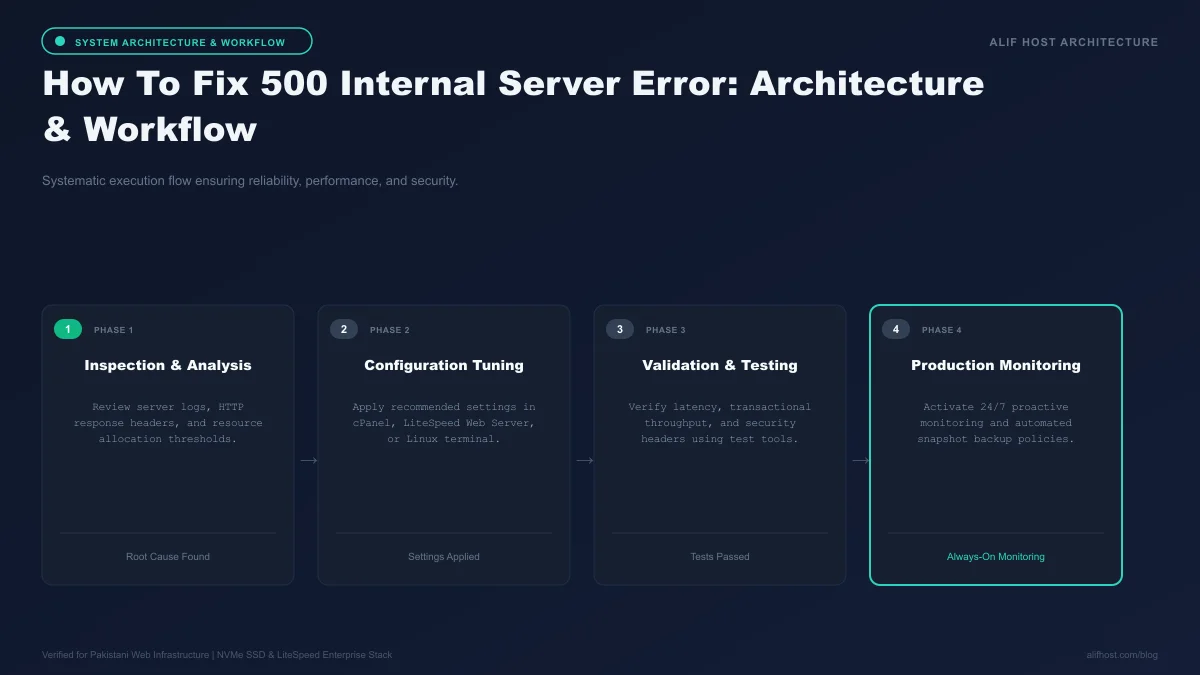
- Generic Response: The server intentionally suppresses detailed error messages on public screens to prevent exposing sensitive file paths or database credentials to visitors.
- Server-Side Origin: The error occurs after the web server receives the request but fails during PHP script compilation or Apache directive parsing.
- Immediate Remediation: Most 500 errors can be diagnosed and fixed in under ten minutes using cPanel File Manager and error logs.
.htaccess, isolating plugins, and verifying memory allocations. Follow step-by-step diagnostic actions in our 500 Error KB guide, explore WordPress hosting, and consult our PHP memory limit guide.Diagnostic Step 1: Enable WordPress Debug Mode and Inspect Error Logs
Before randomly deactivating plugins, the most efficient engineering practice is enabling debug logging to discover the exact PHP error string and offending file line number.
Enabling WP_DEBUG in wp-config.php
Access your website root directory via cPanel File Manager or FTP. Open wp-config.php and locate define('WP_DEBUG', false);. Replace it with this production-safe logging snippet:
define('WP_DEBUG', true);define('WP_DEBUG_LOG', true);define('WP_DEBUG_DISPLAY', false);(Prevents errors from appearing publicly to visitors)@ini_set('display_errors', 0);
Reading the debug.log File
After reproducing the 500 error by refreshing your webpage, open /wp-content/debug.log. The last entry will state the precise fatal error, such as a missing PHP class, syntax error, or exhausted memory ceiling.
Diagnostic Step 2: Check for a Corrupted.htaccess Directive
A malformed rewrite rule or incompatible directive inside your Apache .htaccess file is the single most common trigger of instant 500 Internal Server Errors.
- Rename
.htaccess: In cPanel File Manager (ensure "Show Hidden Files" is enabled in settings), rename.htaccessto.htaccess_backup. - Test Site Connectivity: Refresh your website. If the site loads, the issue was an invalid line inside
.htaccess. - Generate Clean Rules: Log into your WordPress admin dashboard, navigate to Settings -> Permalinks, and click "Save Changes" to automatically generate a fresh, default
.htaccessfile.
Comparison: Common 500 Error Triggers and Specific Solutions
Review this troubleshooting reference table to match symptoms with immediate fixes.
| Underlying Cause | Typical Log Signature | Immediate Fix | Difficulty Level |
|---|---|---|---|
| Corrupted.htaccess | Invalid command or directive | Rename file and regenerate clean permalinks | Beginner |
| PHP Memory Exhaustion | Fatal error: Allowed memory size exhausted | Increase memory_limit to 256M in cPanel PHP Selector | Beginner |
| Plugin / Theme Conflict | Call to undefined function in /plugins/... | Rename plugin folder via FTP to deactivate | Intermediate |
| Incorrect File Permissions | Cannot access file / permission denied | Reset folders to 755 and files to 644 | Beginner |
| Corrupted Core Files | Failed opening required /wp-includes/... | Re-upload clean WordPress /wp-admin/ and /wp-includes/ | Intermediate |
Diagnostic Step 3: Increase the PHP Memory Limit
Resource-heavy themes like Elementor or e-commerce plugins like WooCommerce require substantial memory to execute database queries and image processing. If your PHP memory limit is set to the legacy 64MB default, dynamic scripts will crash with 500 errors.
- cPanel Select PHP Version: Open "Select PHP Version" -> "Options" and set
memory_limitto 256M or 512M. - wp-config.php Directive: Add
define('WP_MEMORY_LIMIT', '256M');directly above the "That's all, stop editing!" comment line. - Verify via phpinfo: Check active memory limits to ensure server-level configurations are actively applied.
Diagnostic Step 4: Deactivate All Plugins Methodically
If the error log points to a third-party plugin conflict, deactivate all plugins simultaneously to restore site access, then re-enable them one by one:
- Rename the
/wp-content/plugins/directory to/wp-content/plugins_disabled/. - WordPress will safely deactivate all active plugins automatically.
- Rename the folder back to
/plugins/, log in to your admin dashboard, and activate plugins individually until the 500 error recurs.
Advanced Diagnosis: Checking WordPress Core File Integrity via WP-CLI
Corrupted core files, often resulting from interrupted automatic updates, disk quota exhaustion during extraction, or malicious injection scripts, frequently cause fatal PHP fatal errors that trigger 500 errors. You can immediately verify whether your core files have been modified or corrupted using WP-CLI directly from the cPanel terminal or SSH console.
- Execute Core Checksum Audit: Run
wp core verify-checksums. This tool queries the official WordPress.org cryptographic repository and verifies the SHA-256 hash of every core file on your server. - Reinstall Clean Core Files Automatically: If corrupted files are detected, run
wp core download --skip-content --forceto overwrite all core PHP files while preserving yourwp-config.phpandwp-contentmedia intact. - Verify File Ownership: Ensure all files belong to your cPanel user and group by running
chown -R username:username public_html/.
Inspecting Web Server Access Logs for Execution Signatures
While error logs record what failed, web server raw access logs demonstrate what happened immediately before the crash. Look for POST requests originating from suspicious IP addresses targeting xmlrpc.php, wp-login.php, or plugin upload paths that may have overloaded PHP worker threads right before the 500 error manifested.
Emergency Checklist: 5-Minute Triage for HTTP 500 Errors
When your site crashes with a 500 error, execute this rapid triage checklist to restore service in under five minutes:
- Check 1: Rename
.htaccessto.htaccess_oldand test if the site loads. - Check 2: Increase
memory_limitto 256M in cPanel "Select PHP Version". - Check 3: Rename
/wp-content/plugins/to/plugins_old/to rule out extension conflicts. - Check 4: Enable
WP_DEBUGinwp-config.phpand inspect/wp-content/debug.log. - Check 5: Verify folder permissions are set to 755 and file permissions to 644 in cPanel File Manager.