


What Is the WordPress White Screen of Death (WSOD)?
The "White Screen of Death" (WSOD) is one of the most frustrating errors in web development: your website suddenly displays a completely blank, white screen with zero text, zero graphics, and zero error explanations. To public visitors and site owners alike, the site appears completely dead. In technical terms, the WSOD represents an unhandled PHP fatal error, parse error, or memory allocation exhaustion where PHP execution terminated prematurely before the web server could output HTML markup.
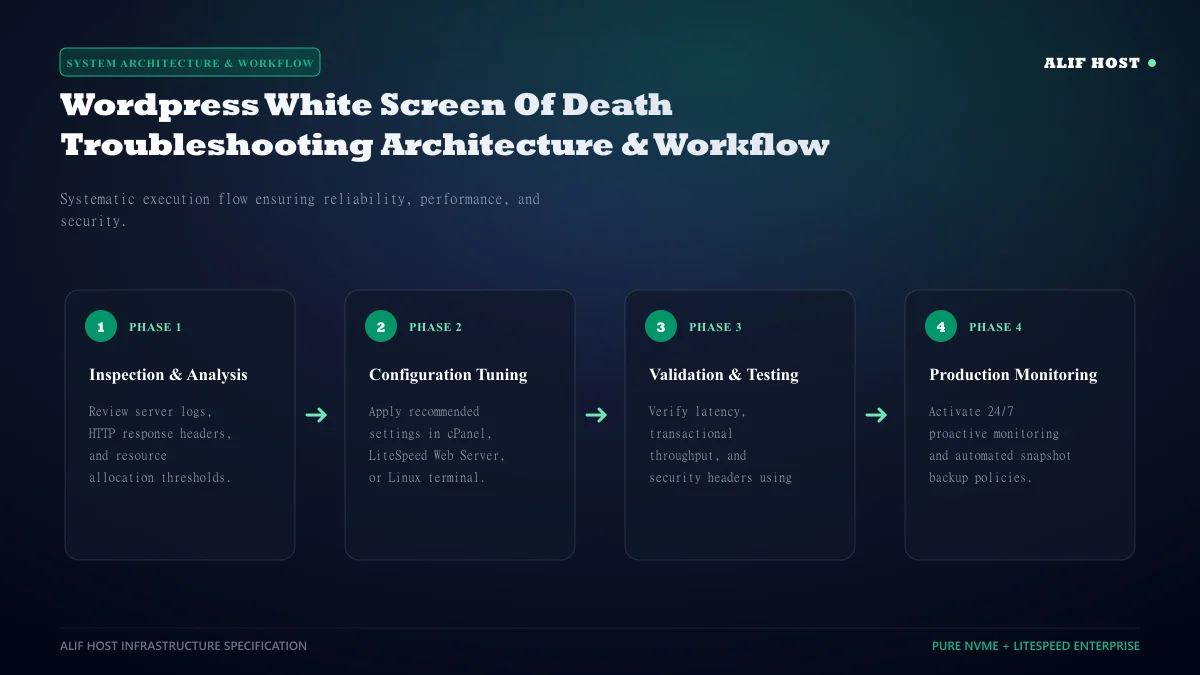
- PHP Fatal Error Origin: Execution halted due to a missing function, syntax error, or incompatible plugin.
- Memory Limit Exhaustion: A script demanded more RAM than allowed by
memory_limit, triggering immediate termination. - Blank Public Screen: PHP
display_errorsis disabled by default in production hosting to protect sensitive server paths from malicious scrapers. - Safe Recovery: Your database content and uploaded media remain completely safe throughout the WSOD troubleshooting process.
Step 1: Check If the Admin Dashboard (/wp-admin/) Is Accessible
Before modifying core files, check whether the white screen affects your entire website or only the public frontend. Navigate directly to https://yourdomain.com/wp-admin/:
Scenario A: Admin Dashboard Loads Normally
If you can log in to /wp-admin/, the fatal error resides strictly within your active theme (such as a syntax error in functions.php) or a frontend caching plugin. Simply navigate to Appearance -> Themes and activate the default Twenty Twenty-Four theme to restore frontend rendering immediately.
Scenario B: Both Frontend and Admin Are White Screens
If both interfaces display a blank screen, the issue originates from a core plugin conflict, a corrupted .htaccess rewrite rule, or total PHP memory exhaustion.
Step 2: Enable WP_DEBUG to Reveal the Underlying Fatal Error
Stop guessing which plugin caused the issue. Enable WordPress native logging to reveal the exact filename and line number responsible for the crash:
- Open
wp-config.phpvia cPanel File Manager or FTP. - Add:
define('WP_DEBUG', true);anddefine('WP_DEBUG_LOG', true);anddefine('WP_DEBUG_DISPLAY', false);. - Refresh your blank webpage.
- Open
/wp-content/debug.log. The last entry will explicitly identify the culprit (e.g.Fatal error: Uncaught Error: Call to undefined function in /wp-content/plugins/woocommerce/... on line 142).
Comparison: WSOD Culprits and Quick Fix Protocols
Review this triage table to match error signatures with immediate recovery actions.
| Culprit | Log Message Signature | Immediate Fix Protocol |
|---|---|---|
| Plugin Incompatibility | Fatal error in /wp-content/plugins/... | Rename offending plugin folder via FTP |
| Active Theme Syntax Bug | Parse error in /wp-content/themes/... | Switch to default fallback theme in phpMyAdmin |
| PHP Memory Ceiling | Allowed memory size of... bytes exhausted | Increase memory_limit to 256M in cPanel PHP Selector |
| PHP Version Mismatch | Uncaught Error: Call to deprecated function | Switch PHP version from 8.3 to 8.1 in cPanel |
Step 3: Increase PHP Memory Allocation in cPanel
If your log states "Allowed memory size of X bytes exhausted", your plugins exceeded the allocated RAM buffer. In your cPanel dashboard, open "Select PHP Version" -> "Options", locate memory_limit, and increase the value from 128M to 256M or 512M.
Step 4: Deactivate All Plugins via cPanel File Manager
If you cannot access /wp-admin/, deactivate all plugins simultaneously without database access by renaming the /wp-content/plugins/ directory to /wp-content/plugins_old/. Refresh your site; it will load immediately. Rename the folder back to /plugins/ and re-activate plugins one at a time to catch the offending software.
Command-Line Troubleshooting with WP-CLI in cPanel Terminal
If you have terminal access, WP-CLI is the fastest tool for resolving the White Screen of Death in seconds without touching FTP or phpMyAdmin:
- Diagnose with Stack Traces: Run
wp core is-installed --debugto display the exact PHP fatal error and call stack directly in your terminal console. - Deactivate Suspect Plugins: Run
wp plugin listfollowed bywp plugin deactivate plugin-nameto isolate offending extensions instantaneously. - Toggle Default Themes: Run
wp theme activate twentytwentyfourto restore visual frontend rendering if the active theme contains syntax bugs.
Resolving PHP 8.x Type Strictness and Deprecated Function Crashes
Many older WordPress themes and abandoned plugins written for PHP 7.4 contain loose type comparisons and deprecated function arguments. When hosting servers automatically update to PHP 8.1, 8.2, or 8.3, fatal type errors trigger immediate WSOD screens. In cPanel "Select PHP Version", temporarily rolling back to PHP 8.1 or updating the plugin resolves the collision.
Restoring Corrupted.htaccess Rewrites via cPanel File Manager
Corrupted .htaccess directives can cause the web server to fail before executing WordPress PHP files. Renaming .htaccess to .htaccess_old and re-saving permalinks in /wp-admin/ generates clean, default rewrite rules.
Post-WSOD Prevention Protocol: How to Prevent Future White Screens
After recovering from the White Screen of Death, implement these defensive measures to prevent recurrences:
- Always Test Updates on a Staging Sandbox: Never update major plugins or themes directly on your live production site.
- Maintain Automated Daily Backups: Ensure automated daily snapshots are active in cPanel for instant 1-click restoration.
- Set PHP Memory to at least 256M: Prevent memory exhaustion crashes by allocating sufficient RAM in cPanel PHP Selector.
- Keep PHP Version Compatible: Verify plugin compatibility before upgrading PHP versions across your hosting account.